Speedtest tracking my network
October 15, 2025
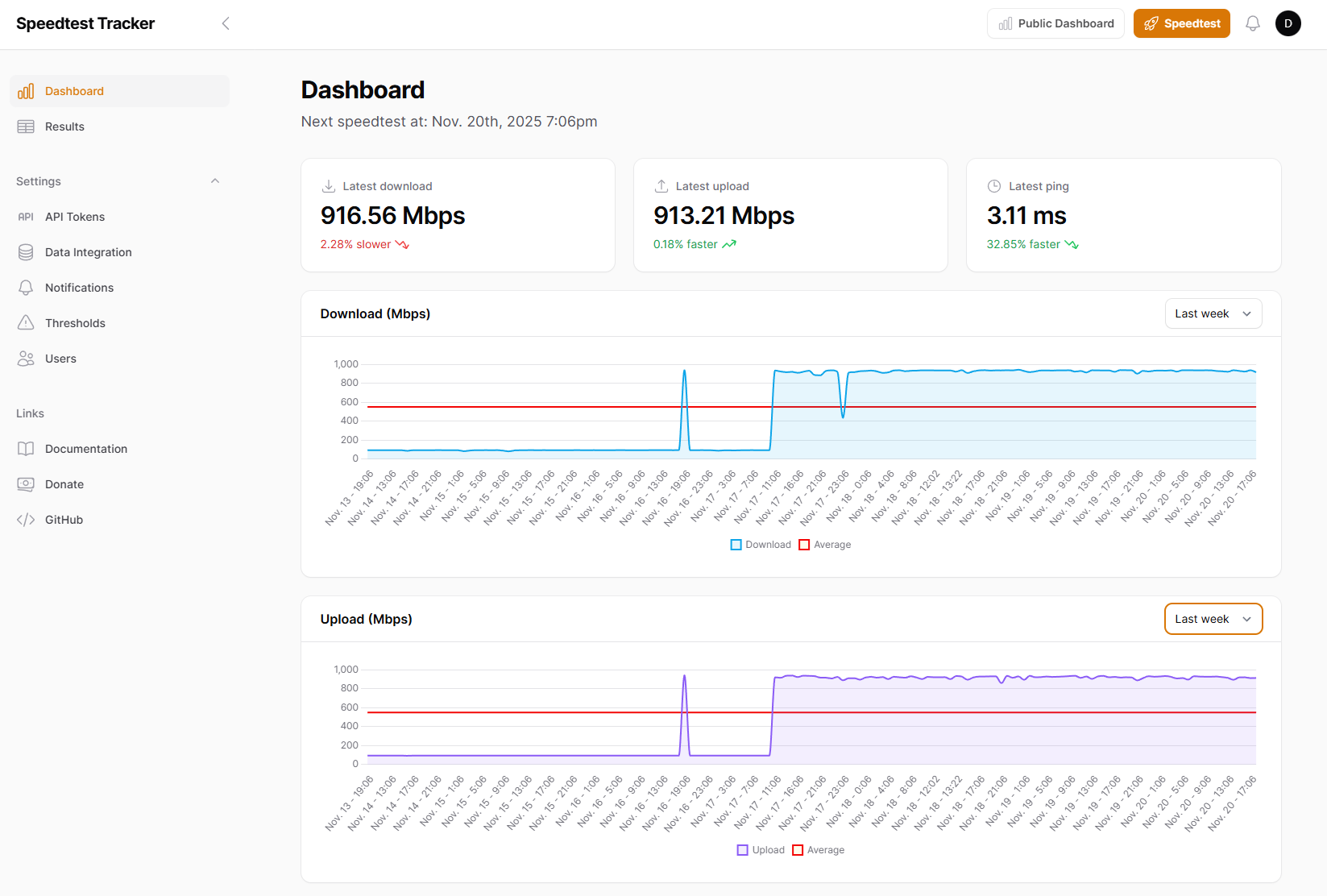
I like to know what speed i’m getting from my ISP. I found a nifty docker container to do that. The web site also provides instructions for k8s deployment.
Steps
As so often I chose to use a containerised version of “SpeedTest-Tracker”. Github here
To set it up, you first need to generate a key which will be used to encrypt data. Then you need to create your docker-compose with any custom variables. Last but not least, you want to create a volume for the container to persist its data.
Creating an encryption key
A key is required for encryption. The following command generates a key which can be used in the APP_KEY that will be set later.
echo -n 'base64:'; openssl rand -base64 32;
For ease of retrieval, I have saved that key in a file called APP_KEY.
Setting up a database
Speed Tracker will need somewhere to store its data. There are four choices: SQLite, MariaDB, MySQL and Postgres. For this experiment I will use SQLite.
I used portainer (already deployed on my ‘dock’ VM) to deploy the container.
I copied into Portainer the configuration that I will need from SpeedtestTracker’s documentation page for Docker Compose:
services:
    speedtest-tracker:
        image: lscr.io/linuxserver/speedtest-tracker:latest
        restart: unless-stopped
        container_name: speedtest-tracker
        ports:
            - 8080:80
            - 8443:443
        environment:
            - PUID=1000
            - PGID=1000
            - APP_KEY=
            - DB_CONNECTION=sqlite
        volumes:
            - /path/to/data:/config
            - /path/to-custom-ssl-keys:/config/keys
Then I enhanced the environment variables to suit my needs. The environment variables are documented here.
Beyond those already present in the yaml file, the key variables we need to set are: ADMIN_NAME, ADMIN_EMAIL, ADMIN_PASSWORD.
The admin name, email, password are used to set the initial login user. I used the following values:
- ADMIN_NAME=David
- ADMIN_EMAIL=david.judge@computer.org
- ADMIN_PASSSWORD=DJAdminPassword
To control the timezone used to display dates and times in the GUI, I also added this variable:
- DISPLAY_TIMEZONE=Europe/London
I will update the APP_KEY value with the one I created in the first step.
I will also create a Docker volume in ~/SpeedTest/data.
In Portainer, I added the yaml above and started the container.
Now I can get to https://dock:8443 where I have to create a user.
At first I could not see anything - It seems the web page assumes the user is running in dark mode. I had to select the text to see what was there:
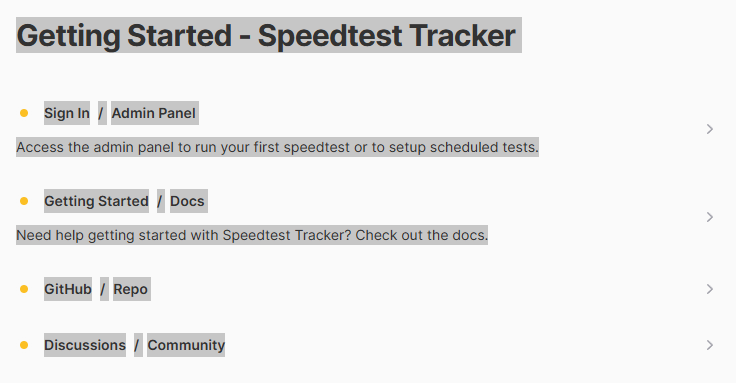
Selecting the first entry takes me to a sign-in page where I gave the initial user-email/password.
Interestingly, you can set the initial user / email / password as environment variables. These are documented here. Look for the “ADMIN” entries.
You can also set the speedtest to run on a schedule by setting the SPEEDTEST_SCHEDULE environment variable. Here’s an example to run a speedtest at 12 minutes past every even hour (i.e. 00:12, 02:12, 04:12, etc.).
SPEEDTEST_SCHEDULE=12 */2 * * *
The dashboard looks like this (*more data is available if you scroll down):
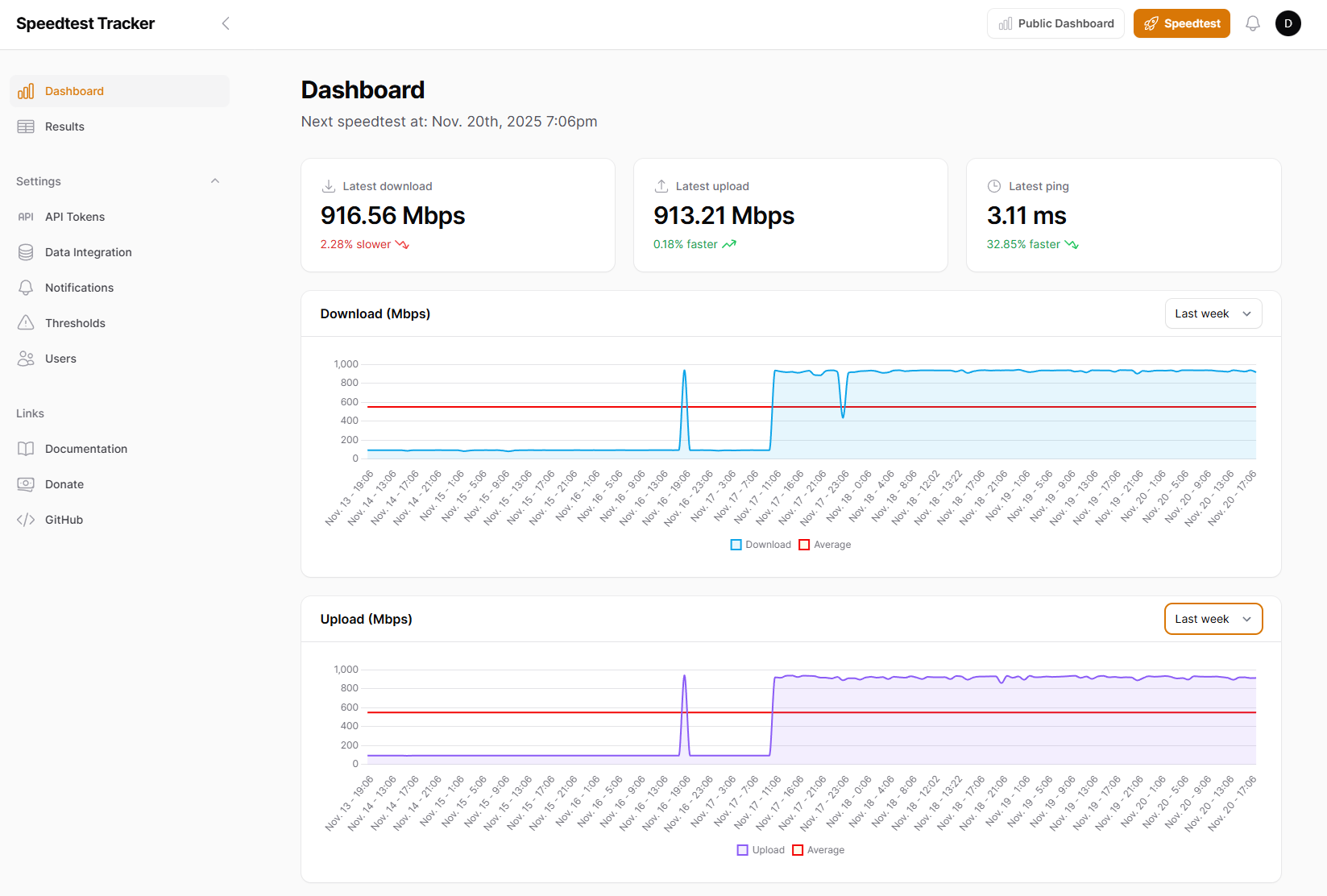
While I find this very useful… and in the above screenshot you can see that I had an issue, though it was not with my ISP but due to re-using some old Cat5 cables which caused the LAN speed between a couple switches to drop to 100MBits/s for a few days. One caveat, though, is that if the internet is not reachable, nothing is recorded and you can’t see that the connection dropped completely.
When I get time, I may look at the code and see if I can create a pull request. No promises…